
Introduction
JSON Schema Preview is a VS Code extension that turns JSON Schema files (.json or .yaml/.yml) into live, human-readable documentation panels — with built-in validation, a visual form editor, and schema inference.
Installation
Install from the VS Code Marketplace:
- Open VS Code
- Press Ctrl+P (or ⌘P on macOS)
- Run:
ext install samdidos.json-schema-previewOr search for "JSON Schema Preview" in the Extensions panel (Ctrl+Shift+X).
Finding your way around
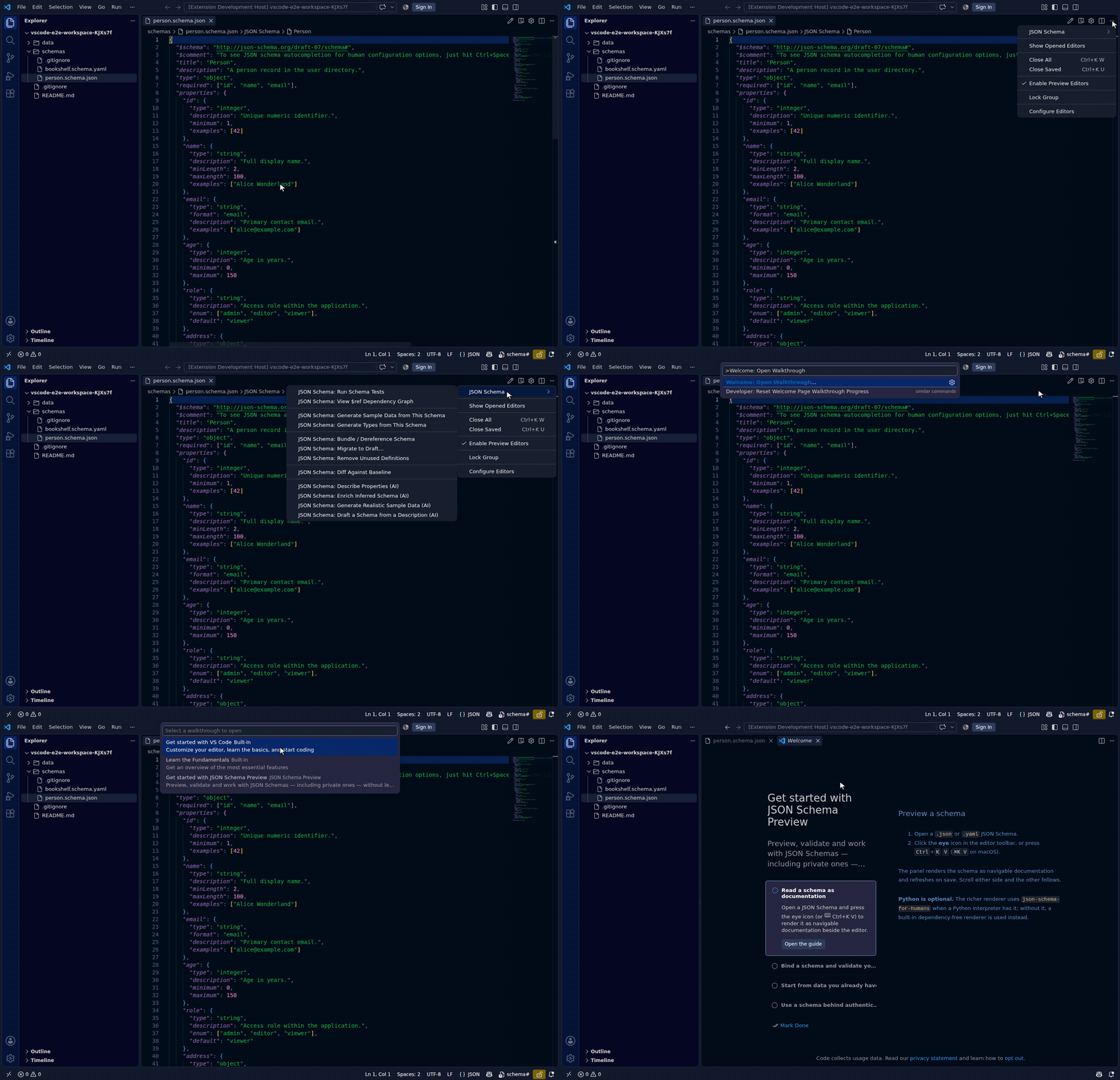
Every command sits behind one JSON Schema: prefix in the Command Palette, and every command without a toolbar icon of its own sits under a single grouped JSON Schema menu in the editor title bar — so the whole surface is two places, not thirty. A first install also registers a walkthrough (Help → Welcome, or Welcome: Open Walkthrough) that covers reading a schema, binding and validating data, starting from data you already have, and using a schema behind authentication.
Opening a Preview
- Open any
.jsonor.yamlfile whose root object has a$schemakey referencing the JSON Schema meta-schema (e.g."http://json-schema.org/draft-07/schema#") — this is what marks the file as a schema itself, as opposed to a data file whose own$schemamerely points at one (see Schema Binding). - The editor toolbar shows three icons: Edit, Preview, and Configure.
- Click the Preview icon or run JSON Schema: Preview from the Command Palette.
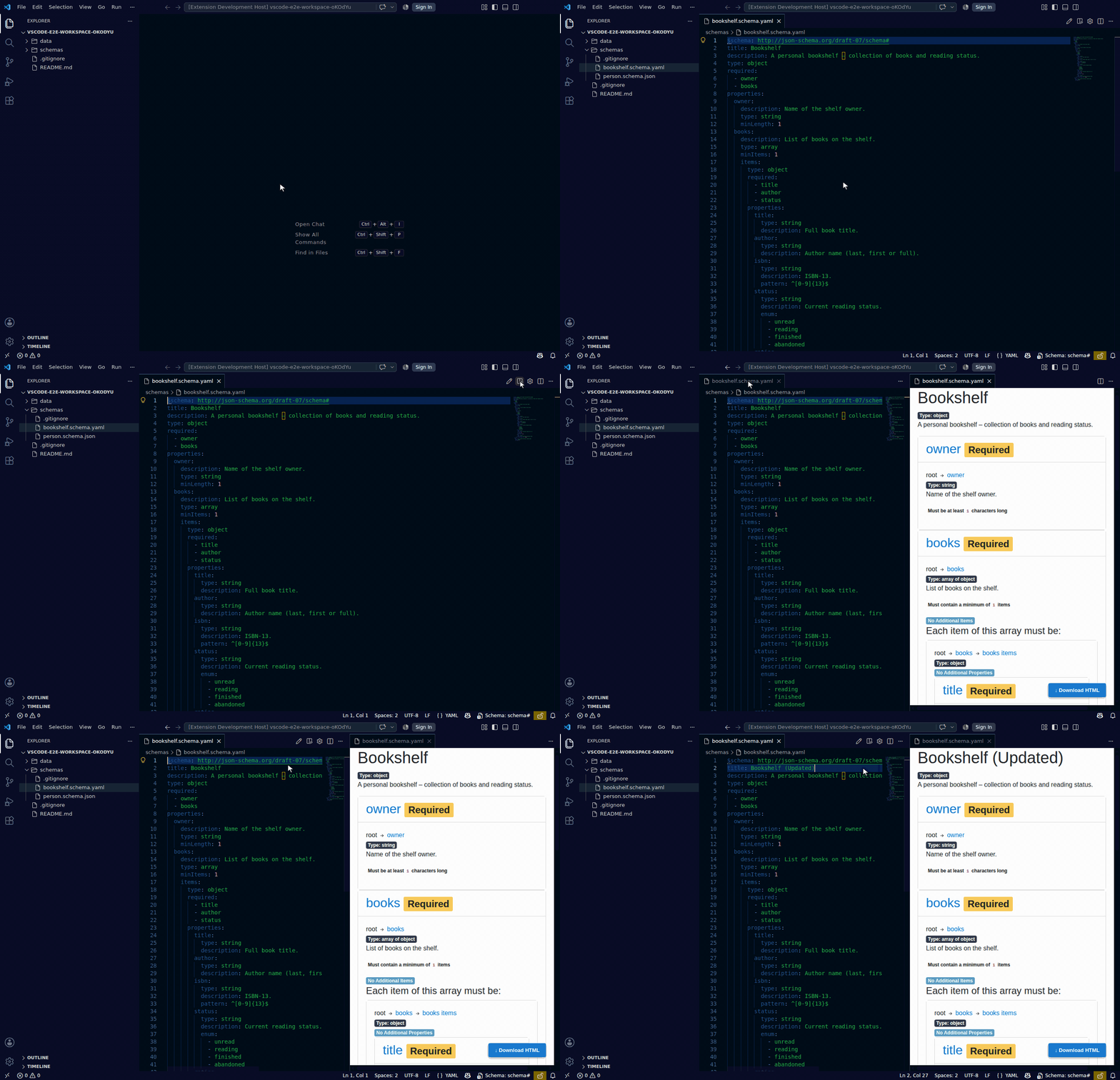
The preview panel opens beside your editor and re-renders every time you save.
The panel includes a Download button (bottom-right corner) that saves the generated output — HTML or Markdown depending on the active template — to a file of your choice.
External links inside the rendered documentation open in your default browser.
Requirements
- VS Code ≥ 1.96.0
- Python 3 is optional. The richer
json-schema-for-humansrendering is used when a Python interpreter with the package is available; if the package is missing, the extension tries to install it automatically (pip install --user, falling back to--break-system-packageswhere needed) under a progress notification. If every install attempt fails, the error includes a copy-pasteablepipcommand and a virtual-environment alternative. - No Python at all? Set
jsonschema.preview.rendererto"builtin"to always use the extension's dependency-free built-in renderer and skip the interpreter probe and install prompt entirely. Left at its default ("auto"), the preview still renders without Python — just with a simpler built-in layout instead of the fulljson-schema-for-humansoutput.
Workspace Trust
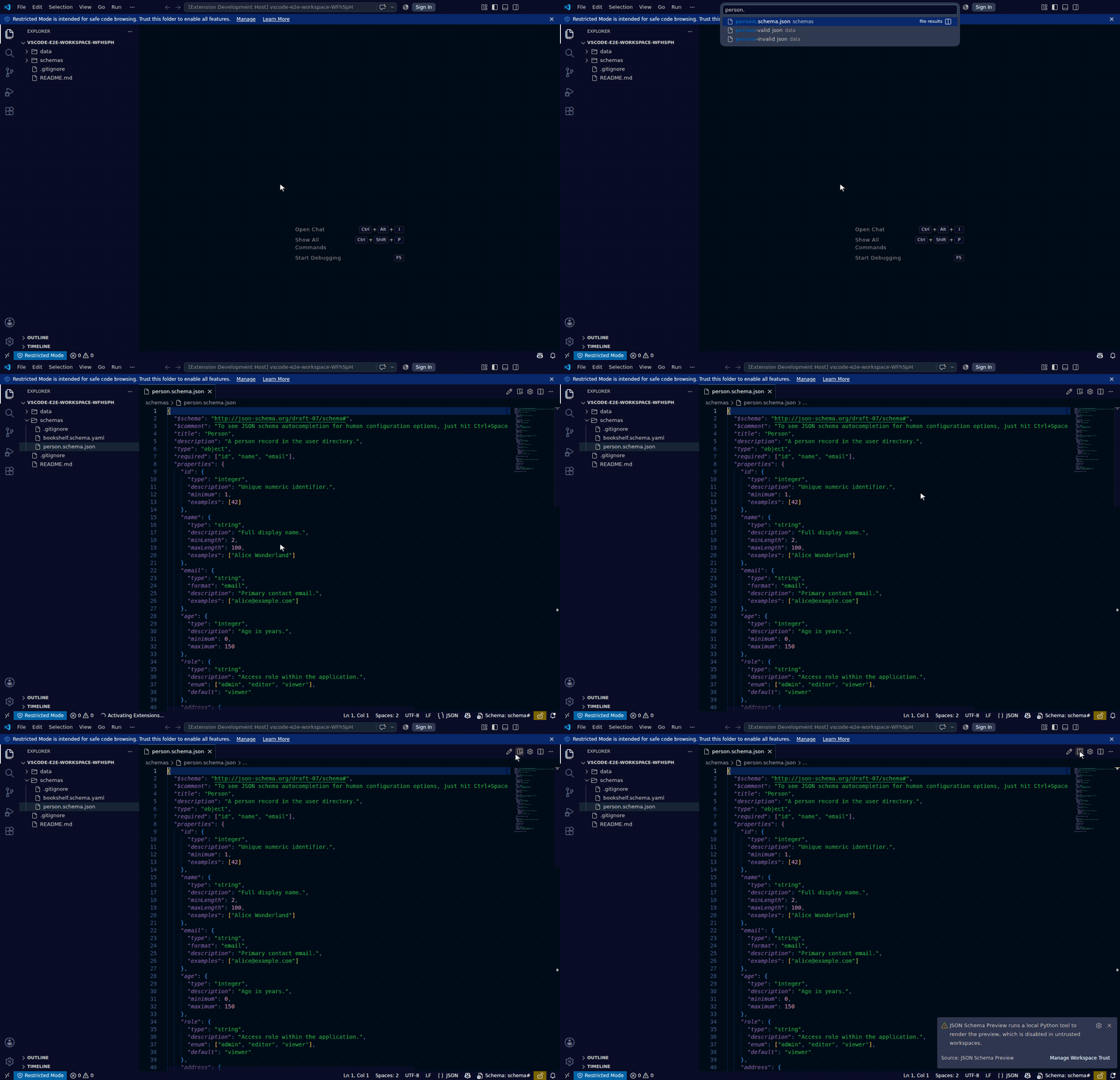
The preview renders by calling a local Python tool, and a few other commands read workspace files or the network, so they are disabled in untrusted workspaces (VS Code's Restricted Mode). The extension is declared as untrustedWorkspaces: limited in its manifest:
| Feature | Trusted | Untrusted |
|---|---|---|
| Preview / live update | ✅ | ❌ (warning shown) |
| Validation (this file) | ✅ | ✅ |
| Settings-based schema binding | ✅ | ✅ |
Inline $schema binding (writes the file) | ✅ | ❌ (warning shown) |
| Schema inference | ✅ | ✅ |
| Auth configuration | ✅ | ✅ |
| Bundle / Dereference, Generate Types (read files + network) | ✅ | ❌ (warning shown) |
| Validate Workspace | ✅ | ✅ — remote schemas served from the local cache only |
If a disabled command is run in an untrusted workspace a warning is displayed; for the preview it includes a Manage Workspace Trust button.
Auto-Open Preview
Enable jsonschema.preview.autoOpen in settings to open the preview panel automatically whenever a schema file becomes the active editor.
Live Preview
Enable jsonschema.preview.liveUpdate to refresh the preview as you type (debounced). The preview panel must already be open.
Searching the Preview
Focus the preview panel and press Ctrl+F (⌘F on macOS) to search its rendered content directly, using VS Code's native find widget.
Scroll Sync
The preview panel and the schema editor follow each other: scrolling, or clicking a line, in either one moves the other to the matching position. When the position sits directly under a nested properties/patternProperties/items chain the sync jumps to that exact section; otherwise (e.g. inside a $ref-resolved definition, or a non-flat render template) it falls back to a proportional position. Reverse (preview→editor) sync only moves the editor's viewport — never its cursor/selection, never the document. A brief cooldown after each sync stops the two views from oscillating. Turned on by default; disable it with jsonschema.preview.syncScroll.
Navigating $refs
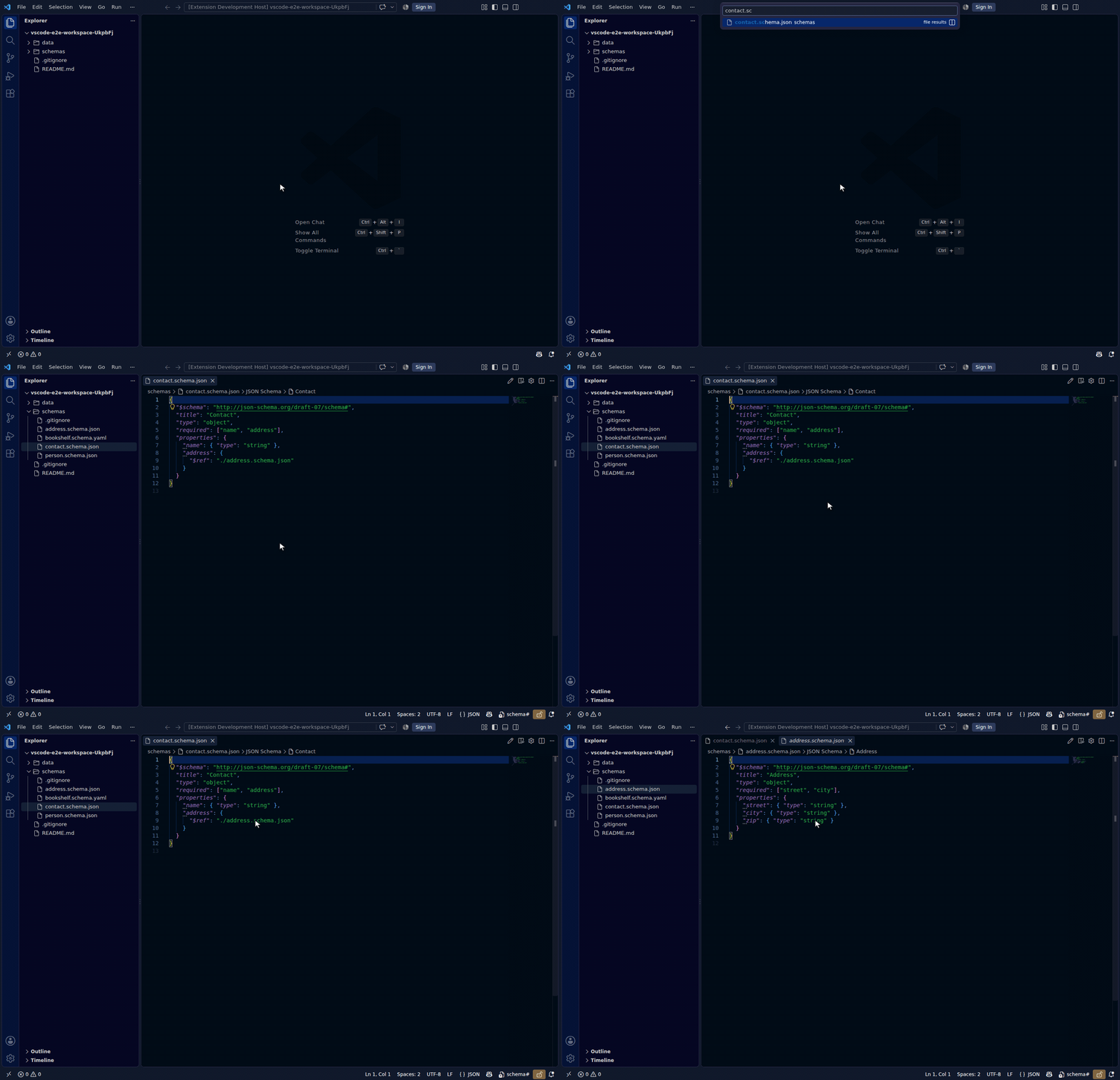
Inside a schema file, Ctrl+click (or ⌘+click) a $ref value to jump straight to the definition it points to — in the same file, another workspace file, or a cached remote schema. Hovering a $ref shows a summary of its target (title, type, description, and its main properties) without navigating away; hover never makes a network request, so an uncached remote $ref just states that it isn't cached yet and offers to cache it so navigation and hover both work for it afterwards. A $ref that points at a path which doesn't exist in the target document shows a plain, non-modal message naming the missing pointer rather than an error.
Offline & Stale-Cache Behaviour
If a remote schema can't be reached (offline, DNS failure, timeout, or a 5xx from the server) and a local cached copy exists, the extension falls back to that cached copy for preview and validation and shows a non-blocking warning that a stale copy is in use — it never blocks you with a modal error. If no cached copy exists, you get one actionable error instead, offering Cache Schema Locally (and Configure Auth on a 401/403).
This fallback only applies to fetch failures, not to a schema the server has confirmed doesn't exist: a plain 404 is treated as authoritative (the schema moved or was deleted) and always surfaces as an error, even with a stale cache on disk.
Diagnostics
The extension logs everything it does — render failures, fetch errors, cache decisions — to a dedicated "JSON Schema Preview" channel in the VS Code Output panel (Ctrl+Shift+U, then pick it from the dropdown). Check there first when something doesn't behave as expected.