
Commands
All commands are available in the Command Palette (Ctrl+Shift+P / ⌘⇧P).
Commands that act on the current file are also available as editor toolbar icons when a JSON or YAML file is active (data-file commands such as Validate This File also appear for JSONL and TOML files).
JSON Schema: Preview
ID: jsonschema.preview
Opens (or focuses) the preview panel for the active schema file. The panel renders the schema as visual documentation using json-schema-for-humans. A Download button in the bottom-right corner saves the generated output (HTML or Markdown, depending on the active template).
Disabled in untrusted workspaces — see Workspace Trust.
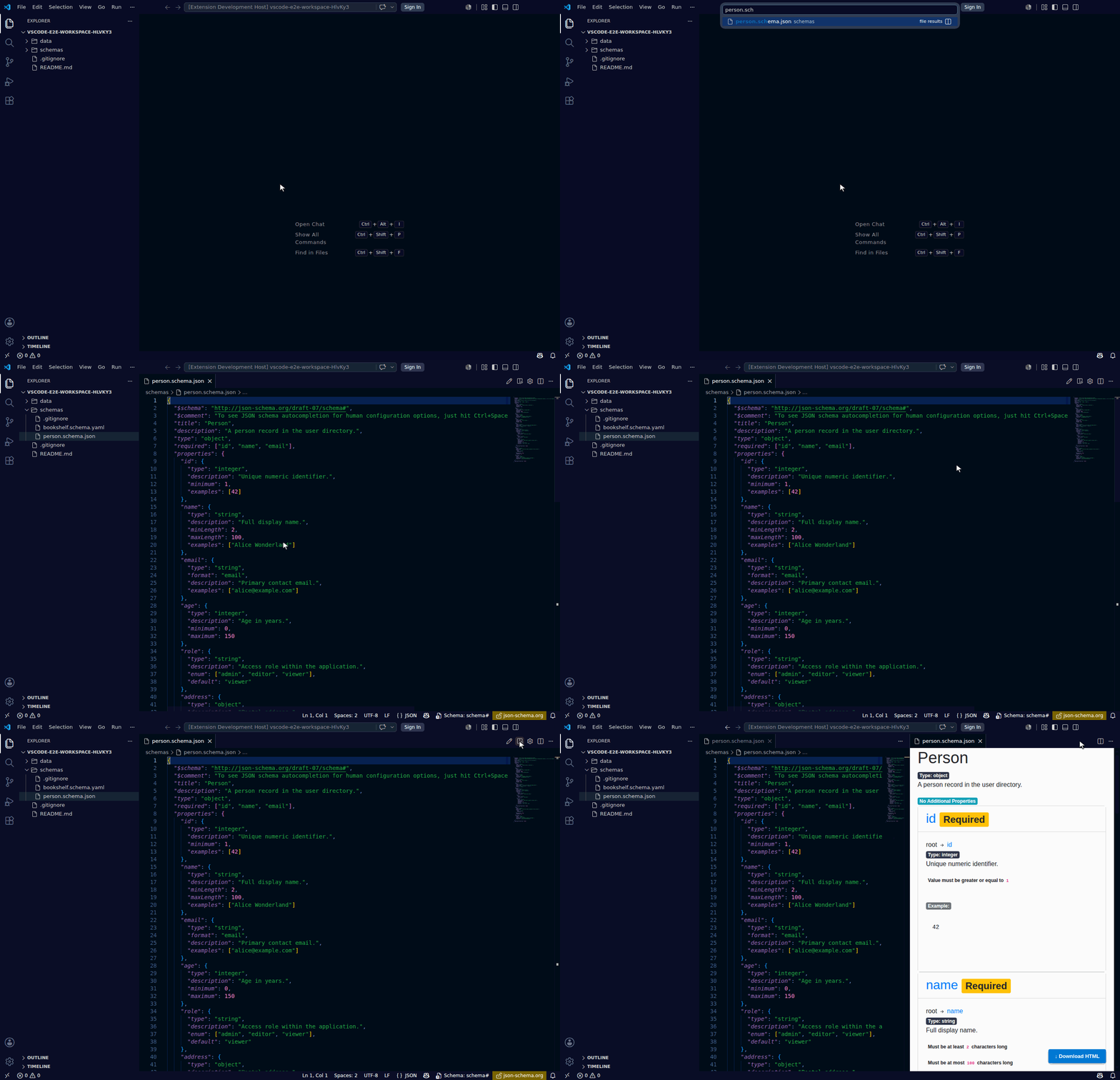
| Toolbar | Command Palette |
|---|---|
| ✅ (eye icon) | ✅ |
JSON Schema: Edit (visual)
ID: jsonschema.edit
Opens a form-based editor panel for the active schema file. Edit the most common JSON Schema keywords without touching raw JSON. Saving from the form writes back to the source file and the preview reloads automatically.
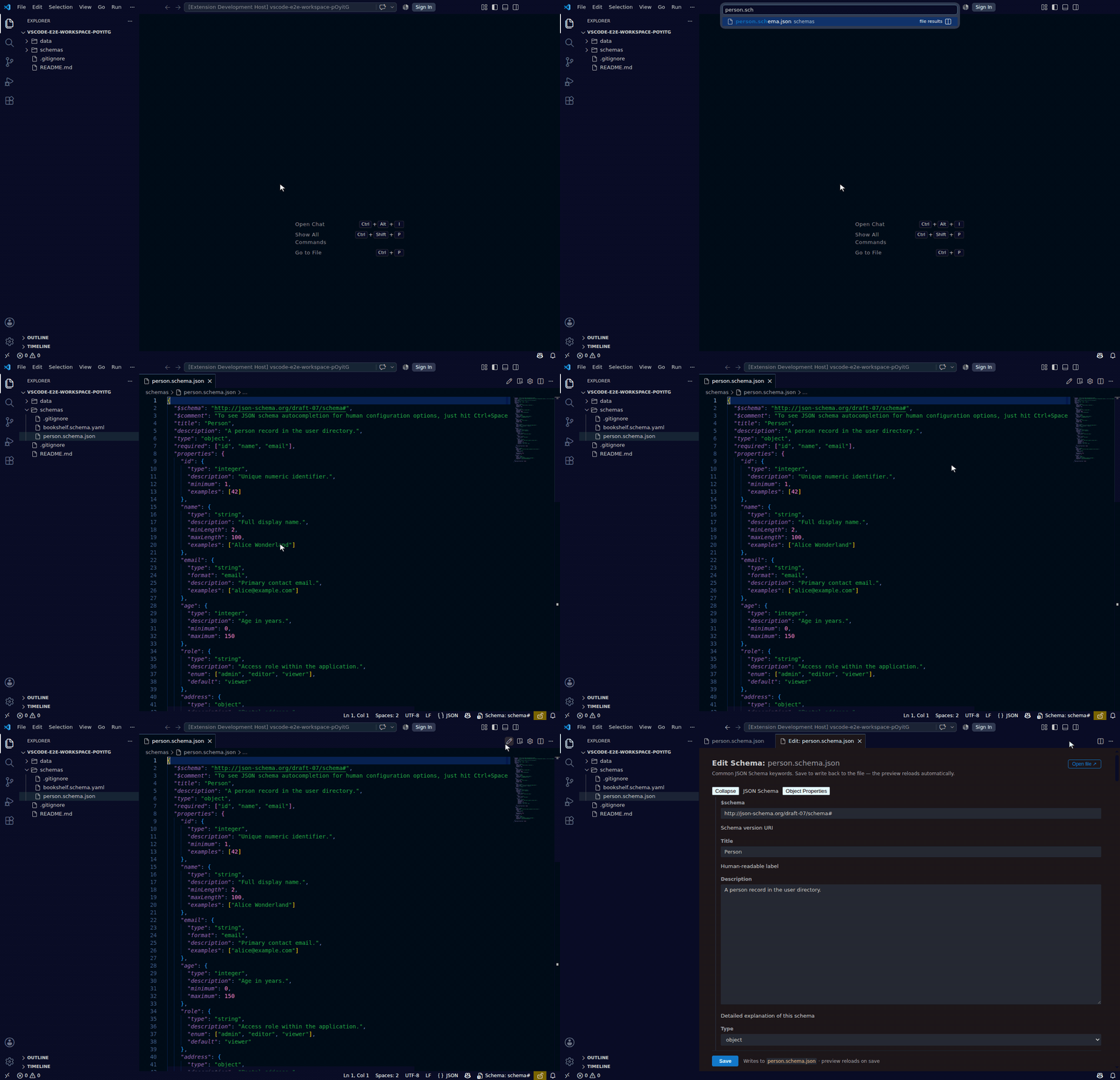
| Toolbar | Command Palette |
|---|---|
| ✅ (pencil icon) | ✅ |
JSON Schema: Configure Preview
ID: jsonschema.configure
Prompts for a settings scope (User, Workspace, or Workspace Folder), then opens that scope's settings.json with the jsonschema.config key ready to edit — creating it if the scope doesn't already have one. See Preview Configuration for how this setting relates to .json-schema-preview-config.json (the file always wins when both are present).
| Toolbar | Command Palette |
|---|---|
| ✅ (gear icon) | ✅ |
JSON Schema: Open Config File
ID: jsonschema.openConfig
Opens the .json-schema-preview-config.json configuration file directly in the editor. The file is discovered from the workspace folder that contains the active schema, with fallback to other workspace folders.
| Toolbar | Command Palette |
|---|---|
| — | ✅ |
JSON Schema: Bind Schema…
ID: jsonschema.bindToCurrentFile
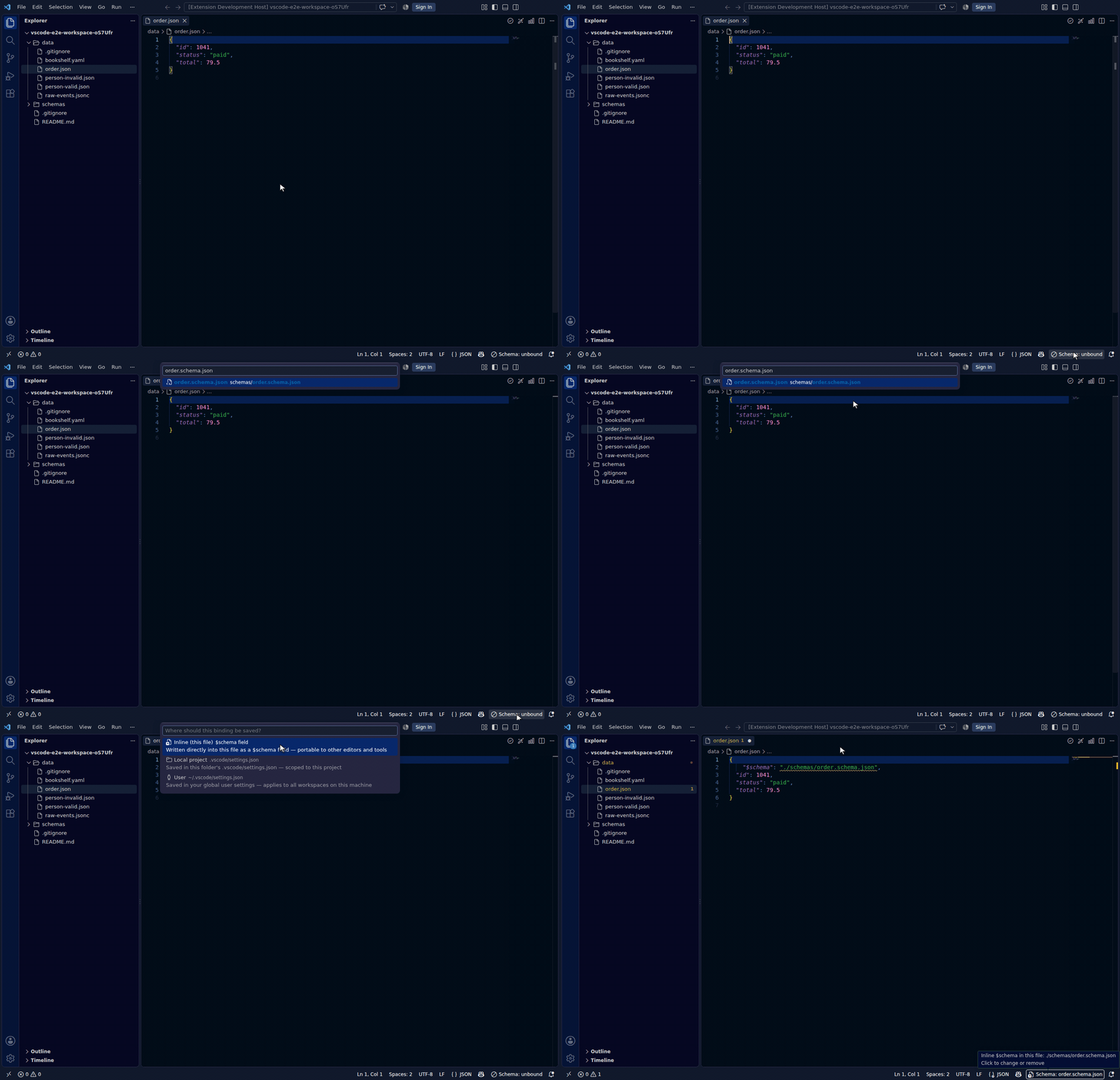
Shows a Quick Pick list of all schema files in the workspace and binds the selected schema to the currently active data file. The binding is written to VS Code's json.schemas / yaml.schemas settings at the scope you choose (workspace file, folder, or user), or inline as the file's own $schema field. A Browse catalog… entry searches SchemaStore and any configured private catalogs instead of pasting a URL. The status bar updates to show the bound schema name.
Also available via right-click in the editor and the Explorer context menu.
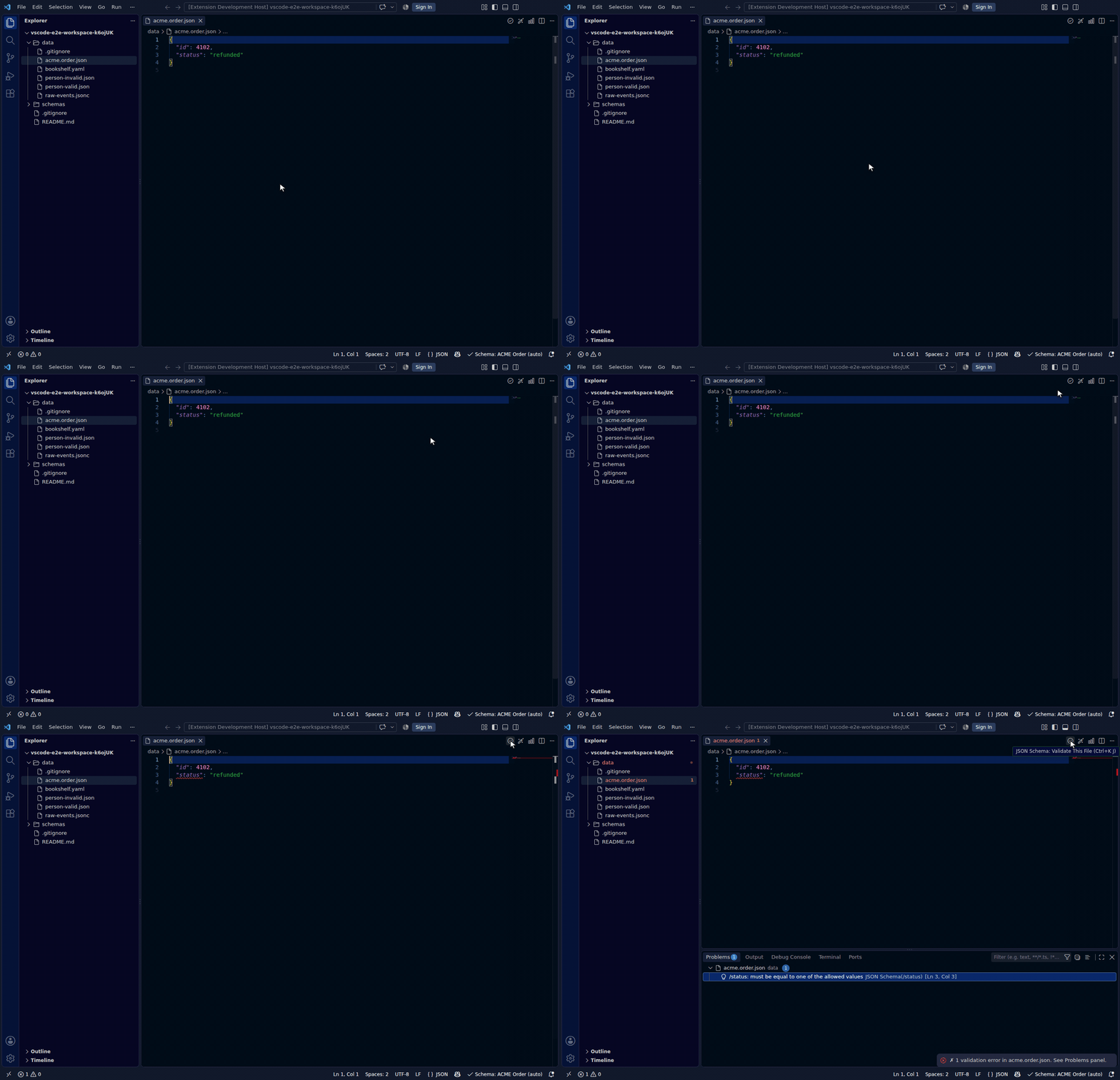
When a file has no explicit binding but VS Code already resolves a schema for it natively — from an installed extension's jsonValidation contribution, or a SchemaStore catalog match for a known config file (e.g. a commitlint config) — the status bar shows that schema with an (auto) suffix instead of "unbound", so it stays consistent with the validation VS Code provides. Validate This File uses that auto-resolved schema as well. Clicking still lets you set your own explicit binding.
A catalog entry binds purely by file name — nothing is written into the document and nothing is configured per project:
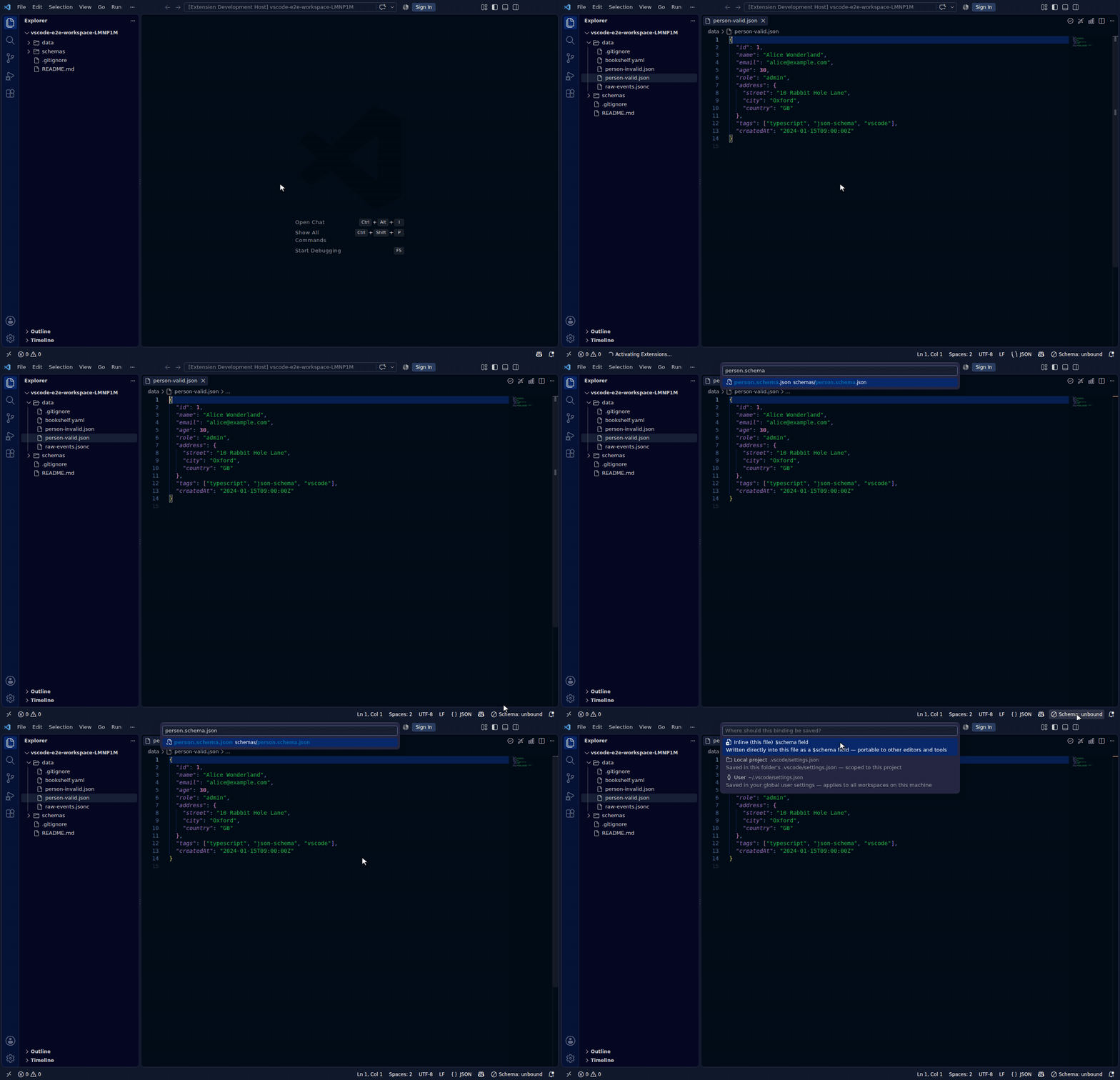
Choosing the Inline scope writes the reference into the document itself, so the binding travels with the file:
| Toolbar | Command Palette | Context Menu |
|---|---|---|
| — | ✅ | ✅ |
JSON Schema: Validate This File
ID: jsonschema.validateFile
Validates the active JSON, YAML, or TOML file against its bound schema (see Bind Schema…) using AJV. Errors appear in the Problems panel with precise line/column locations.
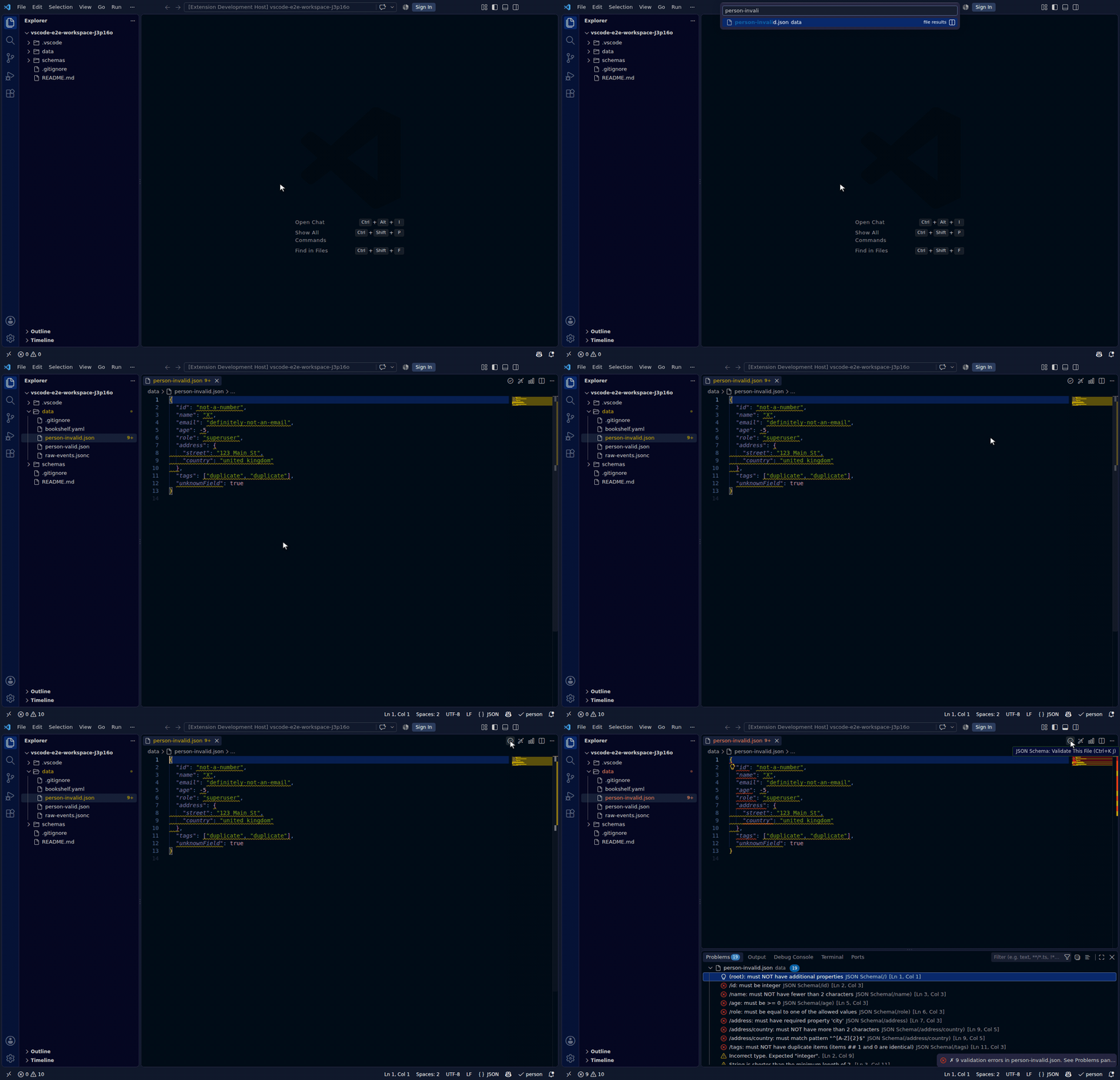
If the file already has an inline $schema field the bound schema is inferred from it — no explicit binding needed. If it has no binding at all but VS Code resolves a schema for it natively (the (auto) state shown in the status bar — see Bind Schema…), validation uses that schema too, rather than reporting "no schema bound".
| Toolbar | Command Palette |
|---|---|
| ✅ (checkmark icon, data files only) | ✅ |
Quick fixes for validation errors
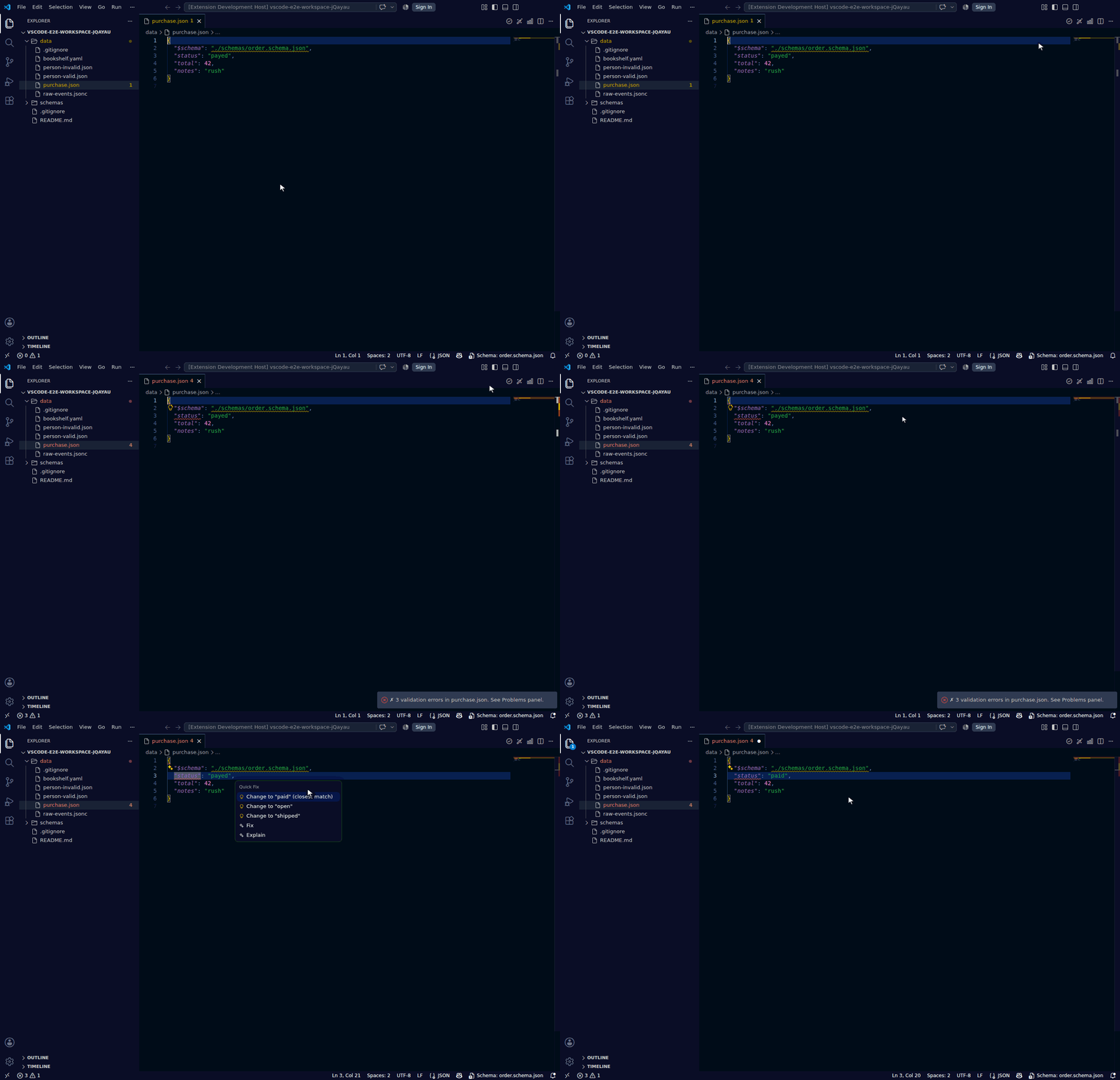
For JSON and JSONC files, the validation errors above carry a lightbulb (💡) offering a one-click repair when the fix is unambiguous: insert a missing required property with a type-appropriate placeholder, remove an unexpected property, replace a value that is outside an enum/const with an allowed one, or coerce a mistyped scalar (e.g. "5" → 5) when the conversion is lossless. Only safe, mechanical fixes are offered — errors whose correct value can't be known (a pattern, a numeric bound, a format) have no quick fix. Fixes are computed against the file's current text, so they stay correct after edits and a fix whose target you've already removed simply disappears.
For an enum mismatch the allowed values are ranked by how close they are to what you typed, so the likely-intended value is offered first rather than in schema order — type "prod" where the schema allows ["development", "staging", "production"] and Change to "production" (closest match) leads the list. When the closest value is a clear near-miss (a typo, a wrong-case value, or an abbreviation like prod→production) it's marked the editor's preferred fix, so a single ⌘/Ctrl+. applies it.
JSON Schema: Generate Schema from This File
ID: jsonschema.inferSchema
Infers a JSON Schema from the active JSON, JSONC, JSONL, YAML, or TOML data file using genson-js. Opens the generated schema in a new editor tab beside the original. A great starting point for adopting schema-first workflows.
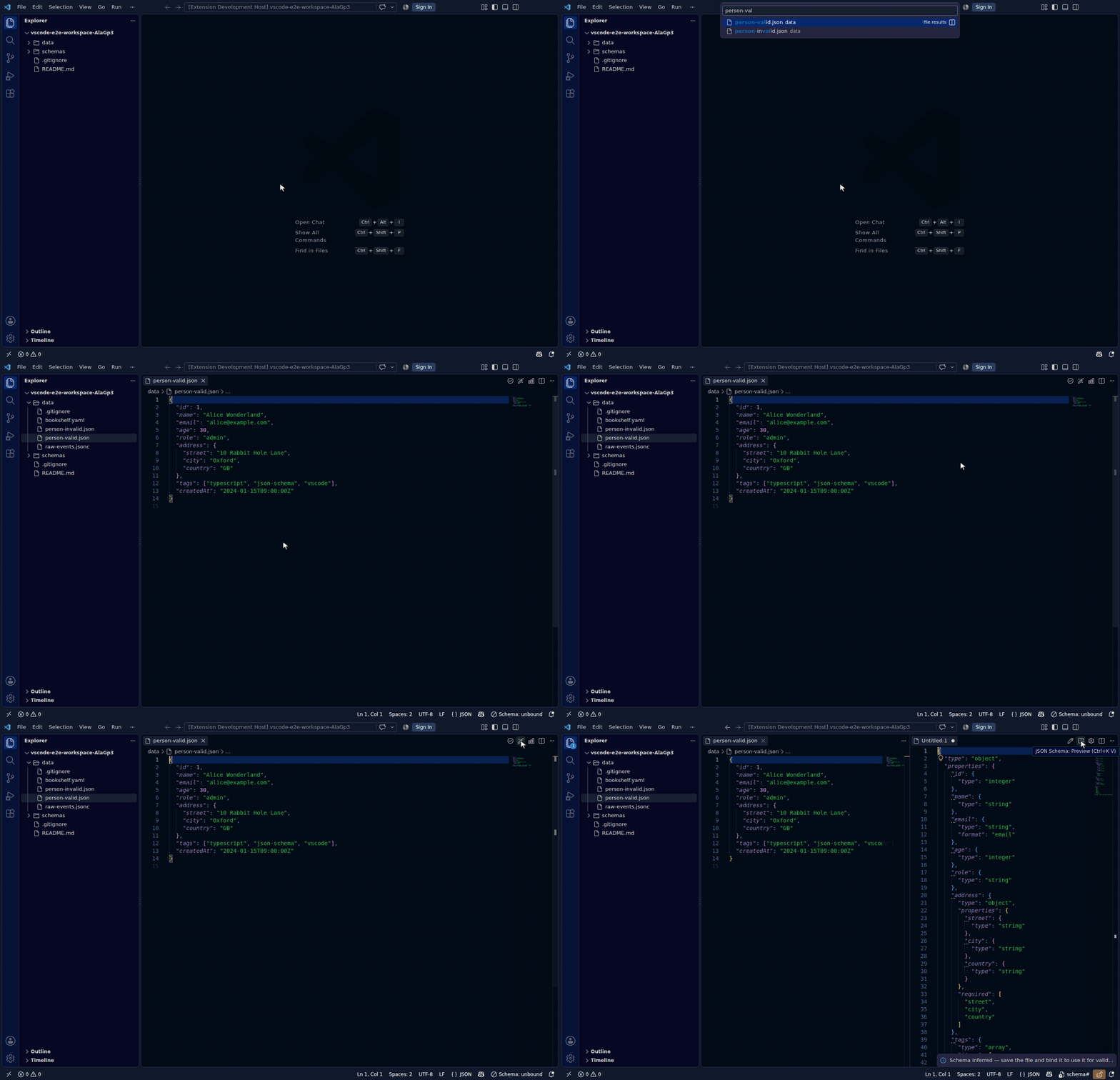
The wand appears for any data file, regardless of whether it already has a schema bound (inline $schema, a settings binding, or a natively-resolved (auto) schema) — there's no reliable way to tell whether an existing binding means you'd never want to (re)generate a starting point from the file's current data, so the icon is always available.
| Toolbar | Command Palette |
|---|---|
| ✅ (wand icon, data files without a schema) | ✅ |
JSON Schema: Generate Sample Data from This Schema
ID: jsonschema.generateSampleData
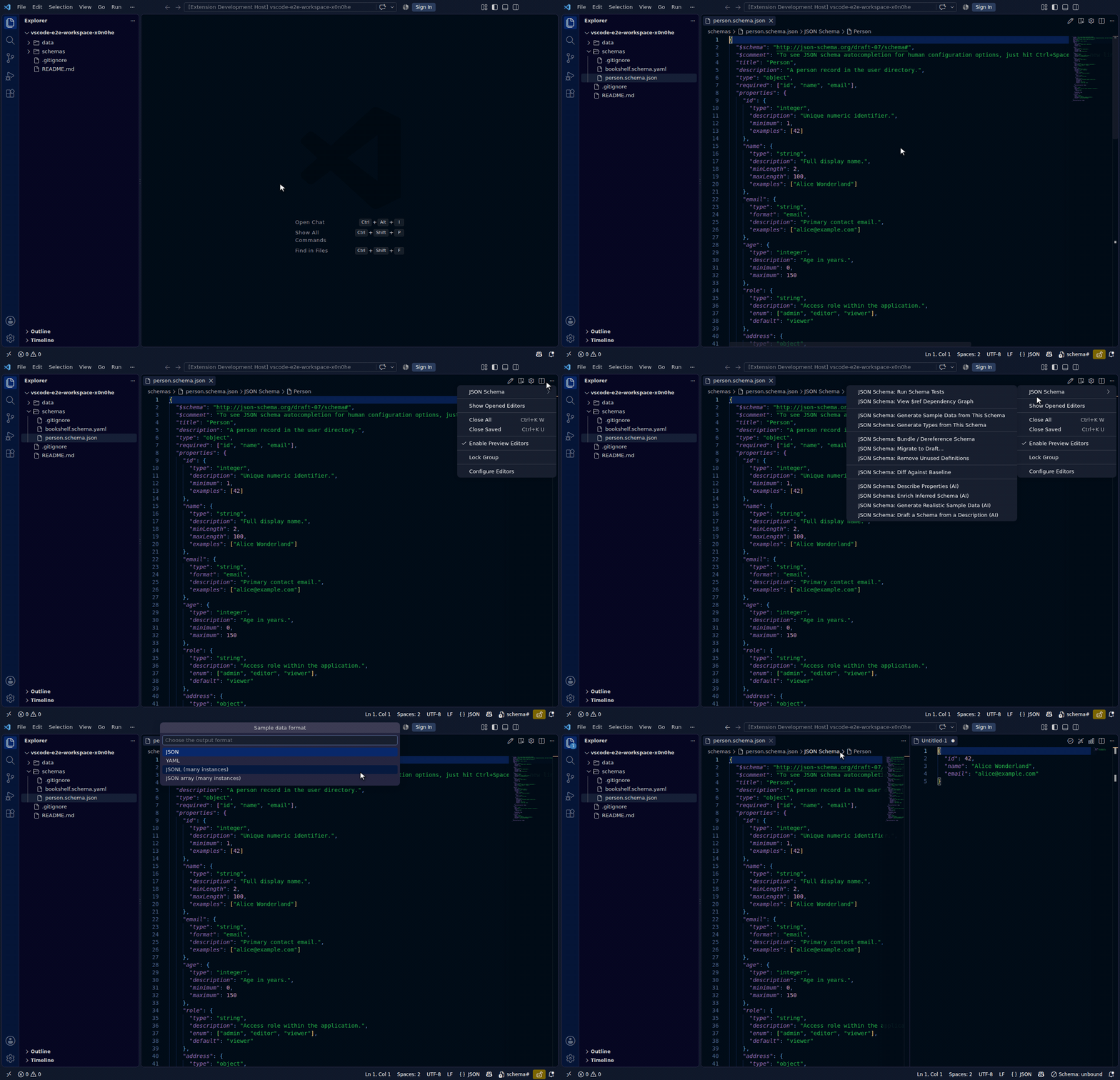
The inverse of inference: generates a valid example instance from the active JSON Schema, honouring const/examples/default/enum and common format/constraint keywords where present. Choose JSON or YAML output; the result opens in a new editor tab beside the schema. Useful for seeding fixtures or trying out a schema you just bound.
| Toolbar | Command Palette |
|---|---|
| ✅ (beaker icon, schema files only) | ✅ |
JSON Schema: Validate Workspace
ID: jsonschema.validateWorkspace
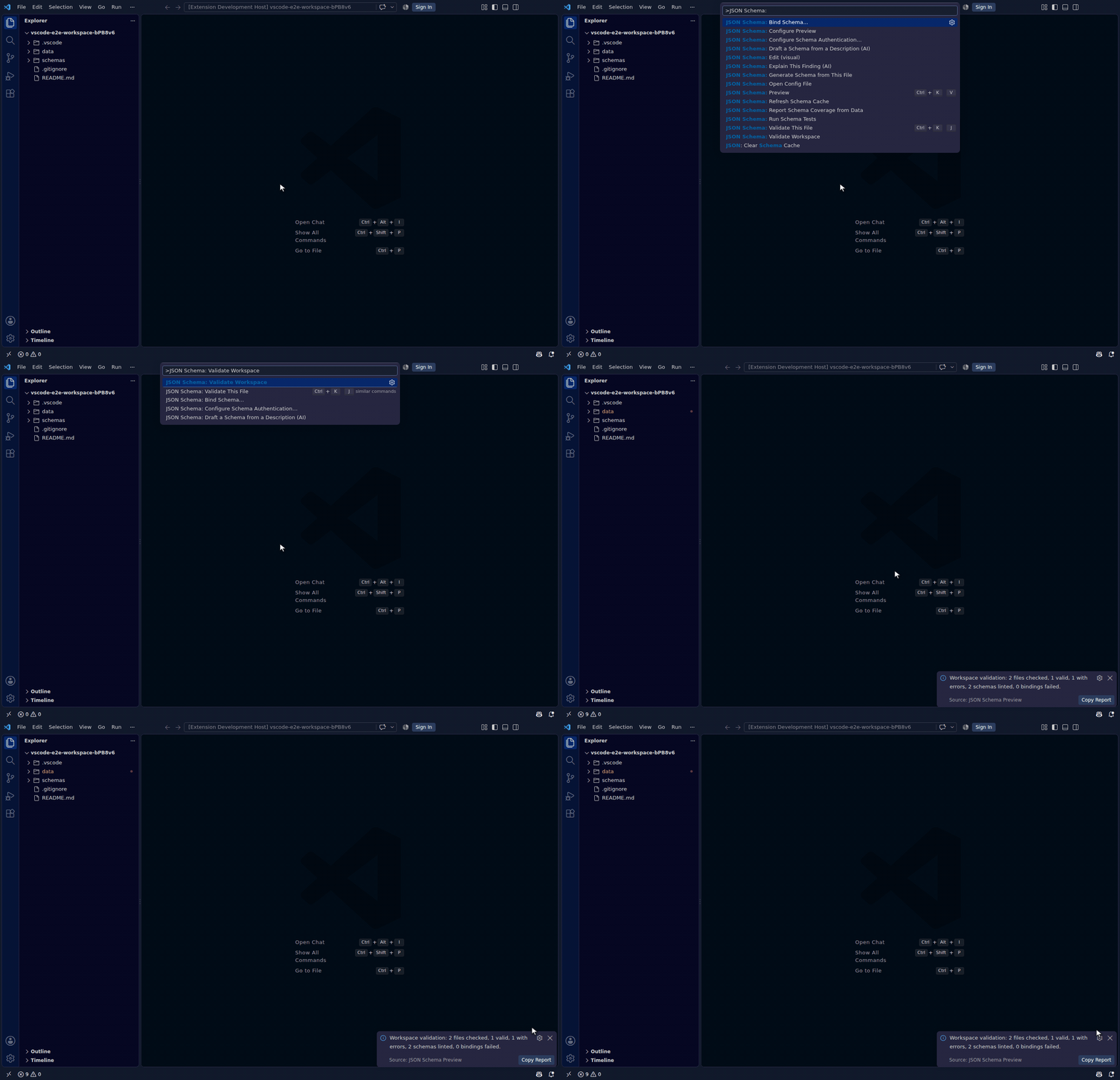
The "is my repo green?" button: one command that sweeps the whole workspace (all folders in a multi-root setup), validates every data file with a schema binding — settings-based at any scope, or an inline $schema — and lints every schema file with the F17 rule set. Findings land in the Problems panel on their real file locations, including files that aren't open; a binding whose schema can't be loaded gets a diagnostic pointing at the binding itself (the inline $schema line, or the settings-file line naming the schema). Each run replaces the previous run's diagnostics.
The run shows cancellable progress and finishes with a summary — files checked, valid, with errors, schemas linted, bindings failed — plus a Copy Report action that puts a per-folder Markdown report on the clipboard, ready to paste into a PR comment.
Discovery respects files.exclude/search.exclude, skips files over 1 MiB, and caps the scan at jsonschema.workspaceValidation.maxFiles (default 2000, noted in the report when hit). Remote schemas are read cache-first and fetched at most once per run; in an untrusted workspace they're served from the local cache only.
| Toolbar | Command Palette |
|---|---|
| — | ✅ (when a workspace folder is open) |
JSON Schema: Report Schema Coverage from Data
ID: jsonschema.schemaCoverage
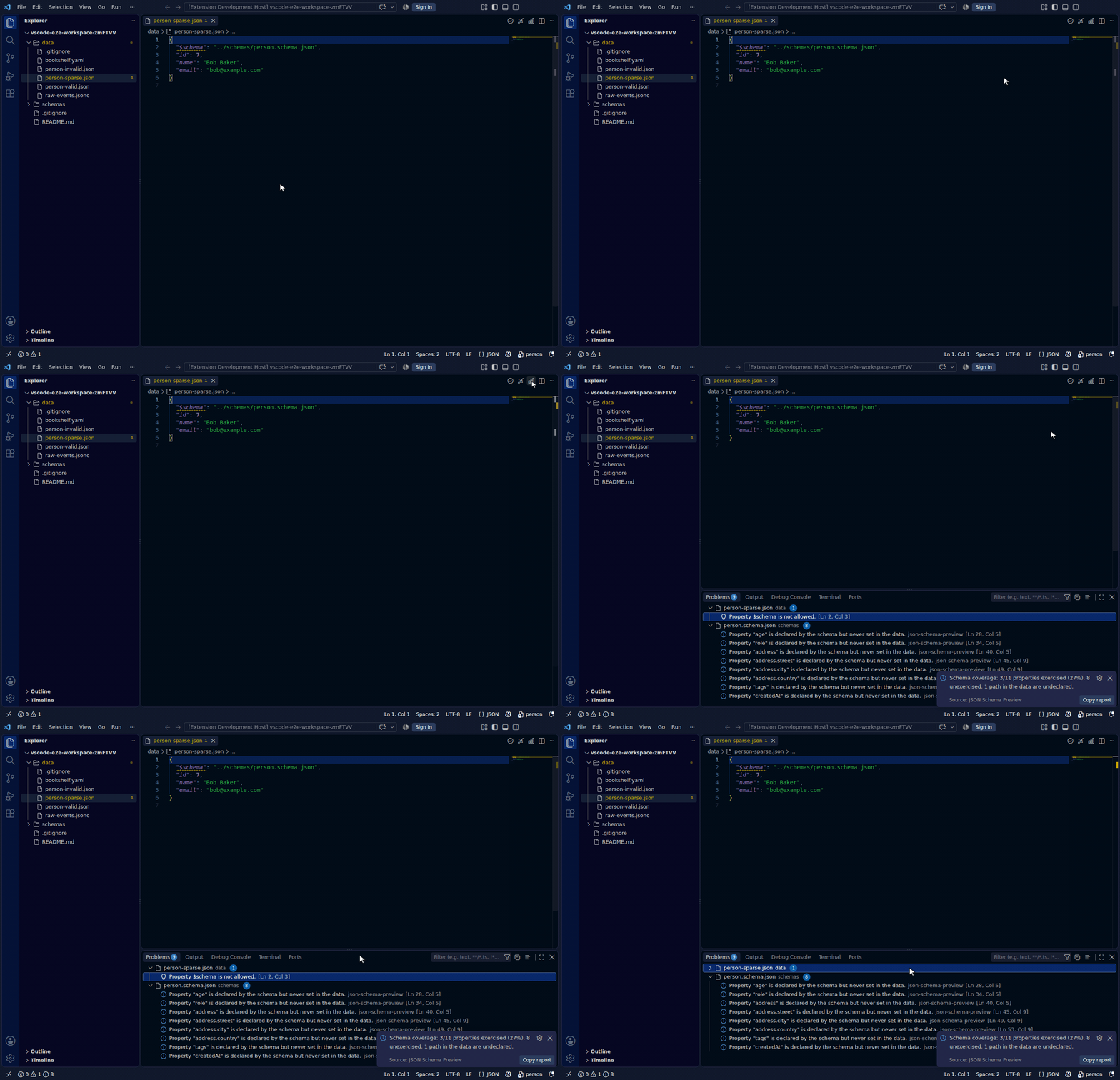
The mirror of validation: instead of "is this data valid?", it answers "which parts of the schema does my data actually use?". Run it on a data file (JSON/JSONC/JSONL/YAML/TOML) that has a bound schema — inline $schema or a settings binding — and it reports how many of the schema's declared properties the data exercises, and lists the ones it never sets. For a JSONL file every record counts, and a property is exercised if it appears in any record.
Each unexercised property is highlighted on the schema file itself as a dimmed Information diagnostic (tagged Unnecessary) on its definition, so the gaps show up where you read the schema; re-running replaces the previous run's highlights. The summary offers a Copy report action that puts a Markdown list of the unexercised paths on the clipboard.
Coverage is a heuristic presence check, not validation: it walks named properties (through nested objects, array items, allOf/anyOf/oneOf, and same-document $ref), but does not resolve remote $ref, evaluate conditional applicability (if/then), or reason about patternProperties. An unexercised property means "worth a look", not "provably dead".
| Toolbar | Command Palette |
|---|---|
| — | ✅ (on a data file) |
JSON Schema: Generate Types from This Schema
ID: jsonschema.generateTypes
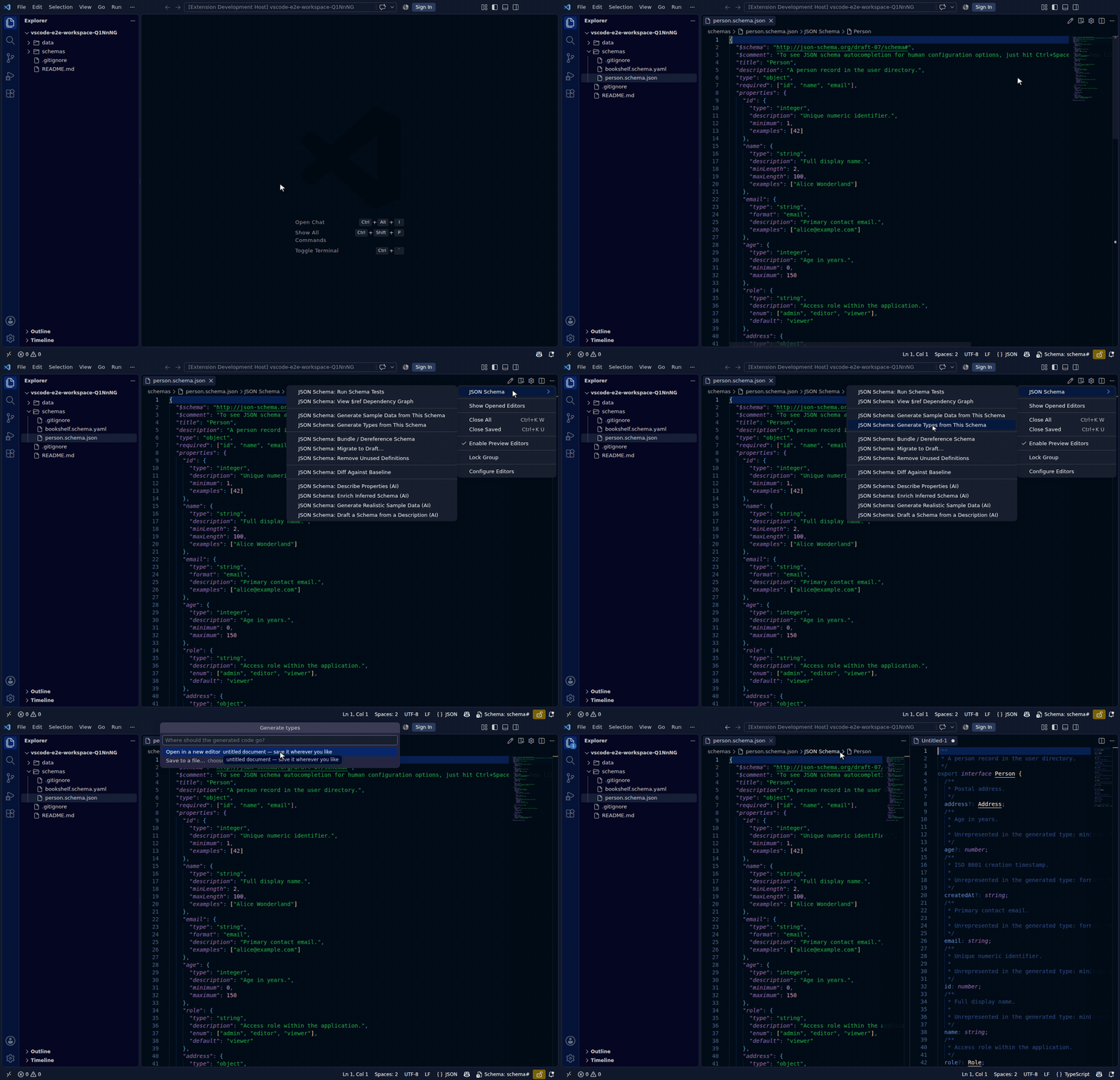
Generates typed declarations from the active JSON Schema — the compile-time counterpart of sample-data generation. A language picker offers TypeScript (the default) plus Python, Go, Rust, Java, C#, Kotlin, Swift, Dart, and C++, all emitted by the same deterministic engine. For TypeScript: required properties become mandatory members, enums become unions of literal types, descriptions become TSDoc comments, and each $defs entry becomes a named declaration (recursive schemas self-reference and always terminate). Constraints no type system can express (pattern, minimum, if/then, …) are noted in each language's doc-comments instead of being silently dropped.
After the language pick, choose the destination: a new untitled editor (default), or Save to a file… — a native save dialog pre-filled with <schema-name>.<ext> next to the schema, which writes the file and opens it. Java is special: the language requires one file per class, so saving asks for a folder instead and writes every generated .java file into it (confirming first if any would be overwritten), then opens the top-level class; the untitled editor shows all classes in one document separated by // <FileName>.java banners as a preview. Cancelling either dialog falls back to the untitled editor, so generated output is never lost.
External $refs are resolved with the same machinery as bundling — relative files from disk, remote refs preferring the local schema cache and using stored credentials — before any code is generated; output is deterministic per language, so regenerated files only change when the schema does. Also offered from the Bind Schema… success notification, right after binding a data file.
| Toolbar | Command Palette |
|---|---|
| ✅ (interface icon, schema files only) | ✅ |
JSON Schema: Bundle / Dereference Schema
ID: jsonschema.bundleSchema
Flattens a multi-file schema into one self-contained document, opened in a new editor tab — the source file is never modified. Two modes:
- Bundle — external refs are pulled into
$defsand rewritten to local pointers (round-trippable). Each embedded entry also records where it came from in a$comment(Bundled from <id>), so the source isn't lost once the ref is flattened — the$refgraph reads this back to show it. - Dereference — refs are replaced inline by their targets (maximally portable); cyclic references are detected and kept as
$defsrefs so expansion always terminates.
Remote refs resolve using stored credentials and prefer an existing local cache entry over the network. Resolution runs under cancellable progress showing which document is currently being fetched. The root schema's $schema/$id are always preserved; any nested $id that would change resolution semantics after inlining is stripped and called out in the completion message. To bound memory on very large schema trees, the operation aborts with a clear error past a cap of 100 external documents.
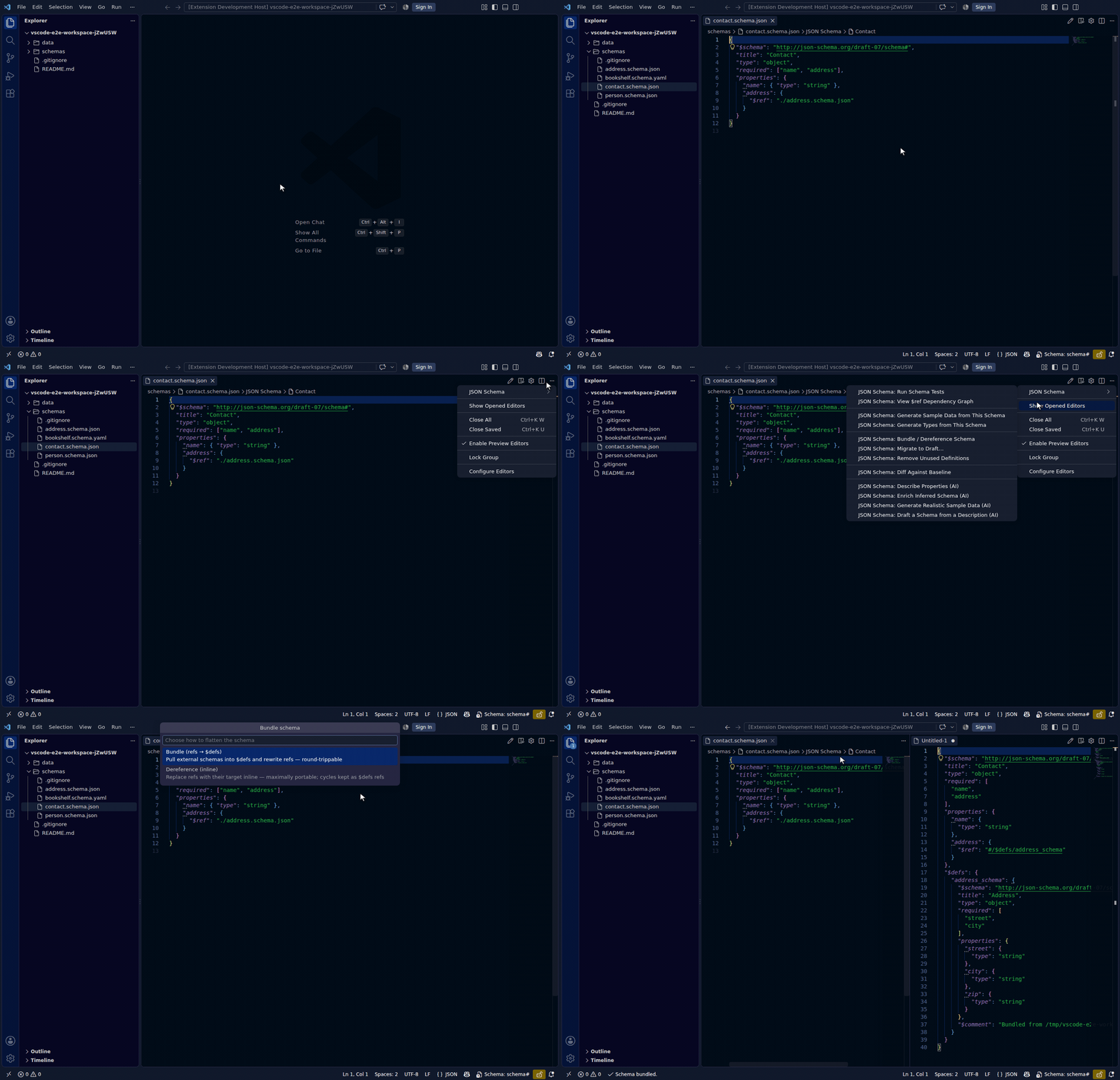
| Toolbar | Command Palette |
|---|---|
| ✅ (references icon, schema files only) | ✅ |
JSON Schema: Diff Against Baseline
ID: jsonschema.diffSchema
Compares the active schema against a baseline — Git HEAD, another workspace file, or a remote URL — and classifies every change as breaking, non-breaking, informational, or unclassified for instance-document compatibility. Shows a one-line summary with a button to open the full grouped report (a read-only document listing each change's JSON Pointer path and old → new values).
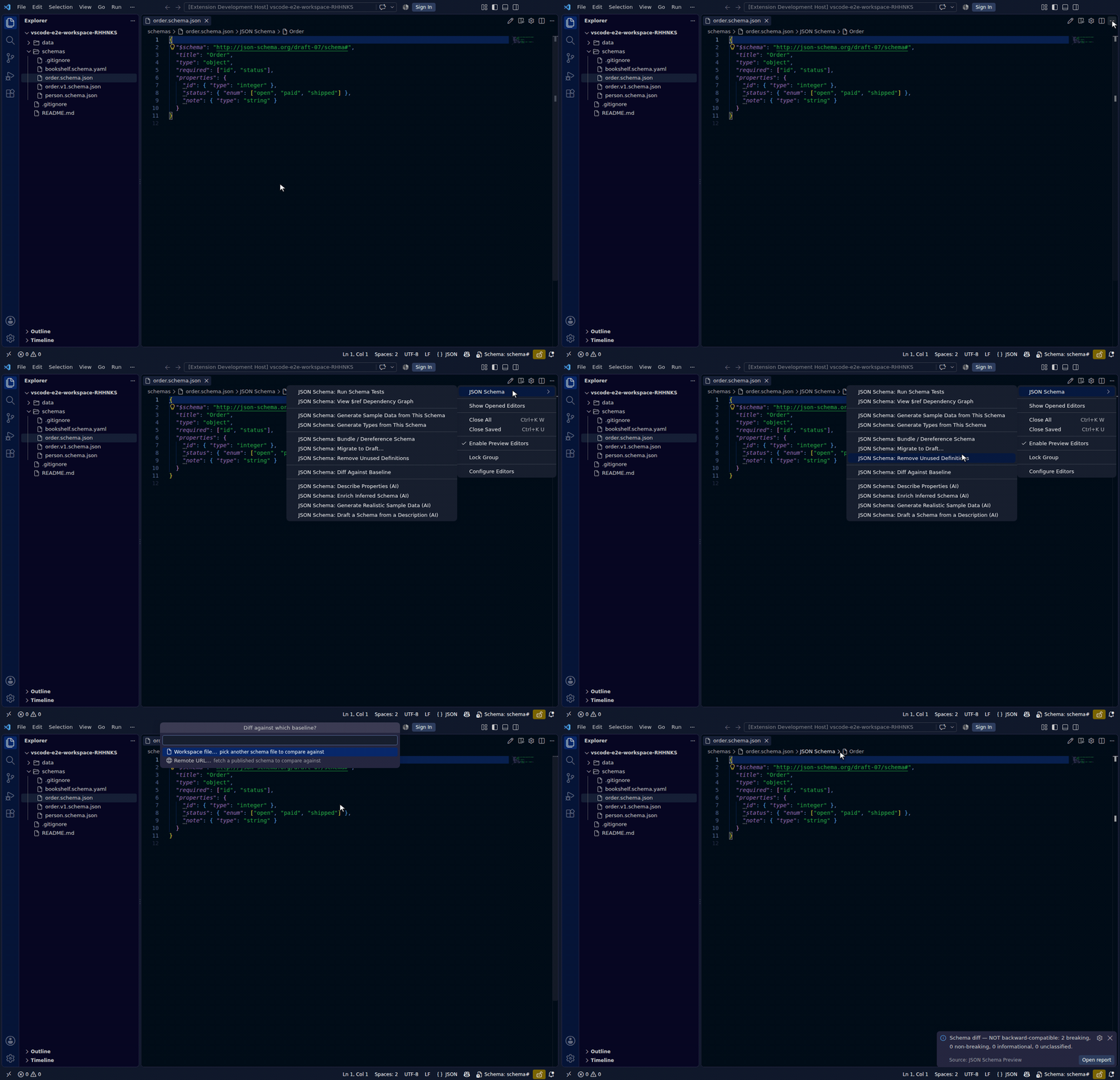
| Toolbar | Command Palette |
|---|---|
| ✅ (diff icon, schema files only) | ✅ |
The summary leads with a one-word verdict — backward-compatible or NOT backward-compatible — so you can judge "can I ship this?" before reading the details. A new required name or a narrowed type is breaking; an added optional property or a relaxed constraint is not.
Gate a PR in CI. The same verdict is available headlessly, so an incompatible schema never merges by accident. It reuses the extension's own classifier — no duplicated logic:
npm run schema:compat -- path/to/old.schema.json path/to/new.schema.json
# exit 0 = backward-compatible, 1 = breaking. Add --strict to also fail on
# changes the classifier can't prove safe (exit 2), or --json for machine output.
A typical PR check diffs the proposed schema against its base-branch version and fails the job on a non-zero exit. Comparison is in-process and reads only the two files you pass it — nothing is fetched (bundle first with Bundle / Dereference for a cross-$ref compare).
JSON Schema: View $ref Dependency Graph
ID: jsonschema.refGraph
Opens a bird's-eye view of the active schema's $ref dependencies in a side panel: which $defs/definitions reference which, and every external file or URL the schema pulls in. It's the middle ground between $ref go-to-definition (one reference at a time) and Bundle / Dereference (flatten them all) — a way to see the shape of a schema: unused definitions show up as isolated nodes, unresolved pointers are flagged, and reference cycles (a schema that can't be flattened trivially) are called out.
The panel is a static, script-free rendering (locked-down CSP): a left-to-right layered diagram (nodes ordered by dependency depth from the root) plus a text adjacency list beside it, so it reads the same with or without the diagram. Each node also shows its type and a truncated description when the subschema declares them, right under its name. By default nothing is fetched — external references are shown as endpoints by their URI. If the schema has any, you're asked (every time, never automatically) whether to resolve them over the network; accepting fetches each external document using the same credentials (F07) and cache (F08) as Bundle / Dereference, follows its own $defs/refs the same way, and recurses up to jsonschema.refGraph.maxDepth documents deep (default 3, configurable) before leaving the rest as unfetched endpoints. A document that fails to resolve shows up as an error node instead of aborting the whole graph. A schema with no $ref reports "nothing to graph" and opens no panel.
If the schema was itself produced by Bundle (below), each folded-in $defs entry still shows the external source it came from — bundling records that provenance in a $comment (Bundled from <id>) precisely so the graph can recover it later, rather than the origin disappearing once refs are flattened into local pointers.
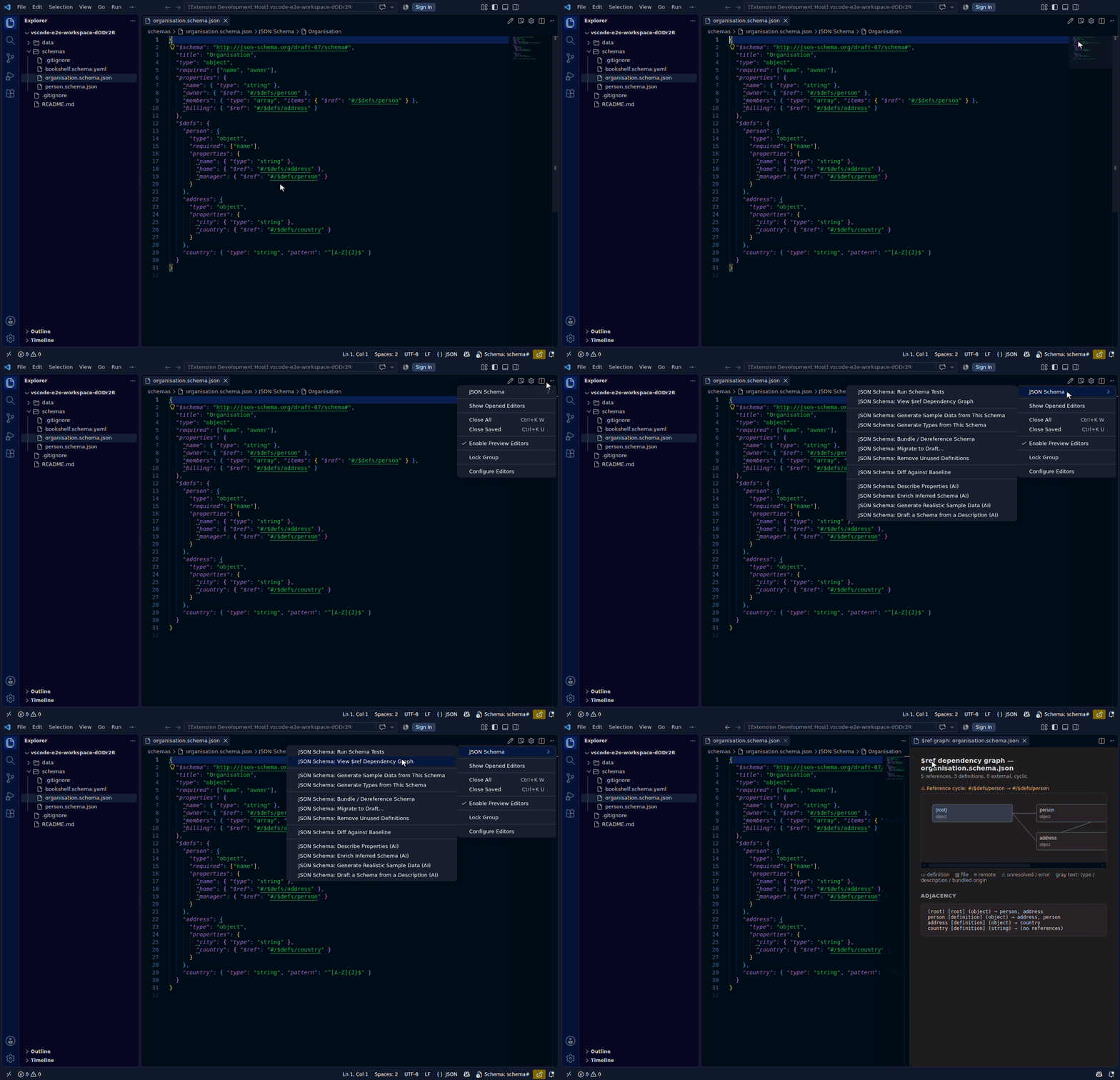
| Toolbar | Command Palette |
|---|---|
| — | ✅ (schema files only) |
JSON Schema: Migrate to Draft…
ID: jsonschema.migrateDraft
Rewrites the active schema between drafts — draft-07, 2019-09, and 2020-12 — applying the well-known keyword changes and reporting exactly how many it made. Upgrading modernises id → $id, boolean exclusiveMinimum/exclusiveMaximum → their numeric form, definitions → $defs (with local $refs rewritten to match), tuple items → prefixItems (and additionalItems → items), and splits dependencies into dependentRequired/dependentSchemas; downgrading reverses each of these. The transform recurses through every subschema and, like the diff command, leaves anything it cannot safely convert untouched rather than guessing. The result opens in a new editor beside the source — JSON for JSON sources, YAML for YAML — so the original file is never modified; a schema that already conforms reports "nothing to migrate".
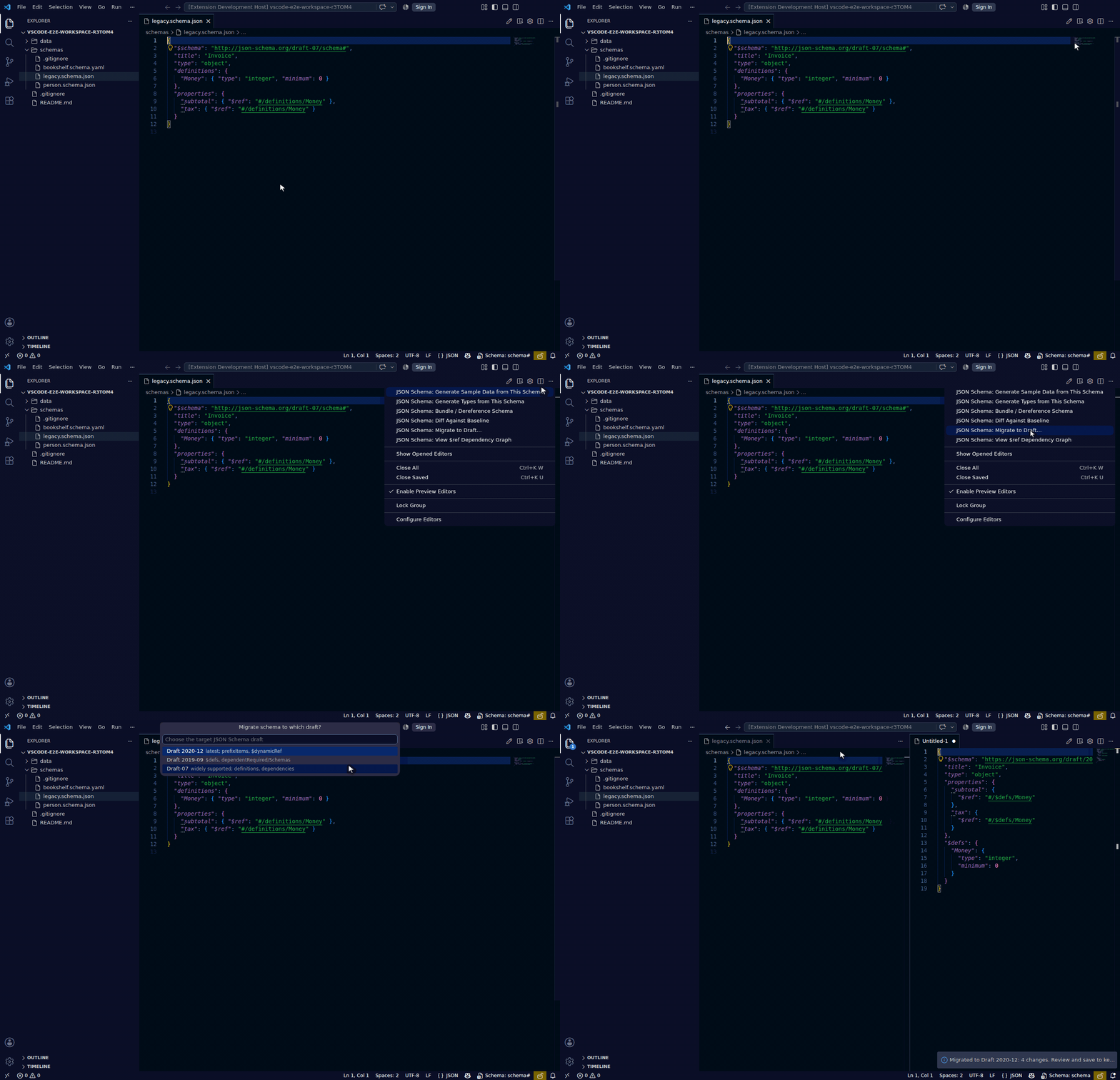
| Toolbar | Command Palette |
|---|---|
| ✅ (swap icon, schema files only) | ✅ |
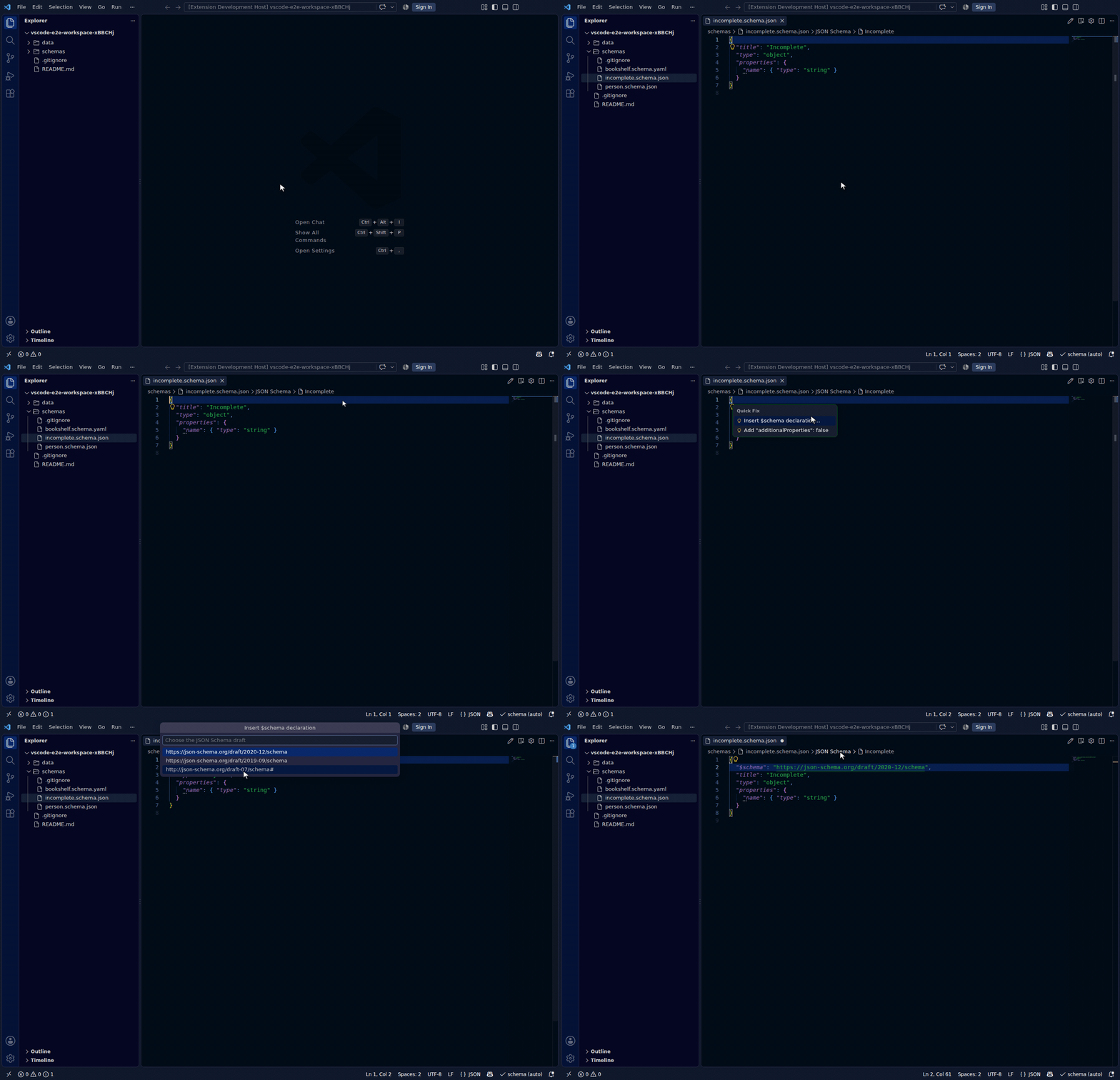
JSON Schema: Insert $schema Declaration
ID: jsonschema.lint.insertSchemaDeclaration
Inserts a $schema declaration into the active schema file, prompting for which JSON Schema draft to target (2020-12 first). Offered as a quick fix by the built-in schema linter when a schema is missing this declaration — see Configuration for the linter's settings.
| Toolbar | Command Palette |
|---|---|
| — | ✅ |
JSON Schema: Configure Schema Authentication…
ID: jsonschema.configureSchemaAuth
Sets up credentials for a remote schema host so the extension (and VS Code's language server) can fetch it. Supports:
- GitHub OAuth — signs in using your existing VS Code GitHub session; no token to paste.
- Bearer token — for Artifactory, private registries, or any HTTPS endpoint.
- Basic auth — username + password stored in your OS keychain via VS Code's Secret Storage API.
The command is also reachable from:
- The lightbulb that appears on the
$schemaline when VS Code can't fetch it - The error message shown by Validate This File when the schema returns 401/403
- The 🔒 / 🔓 status bar item in the bottom bar (click to configure)
| Toolbar | Command Palette |
|---|---|
| — | ✅ |
JSON Schema: Cache Schema Locally
ID: jsonschema.cacheSchemaLocally
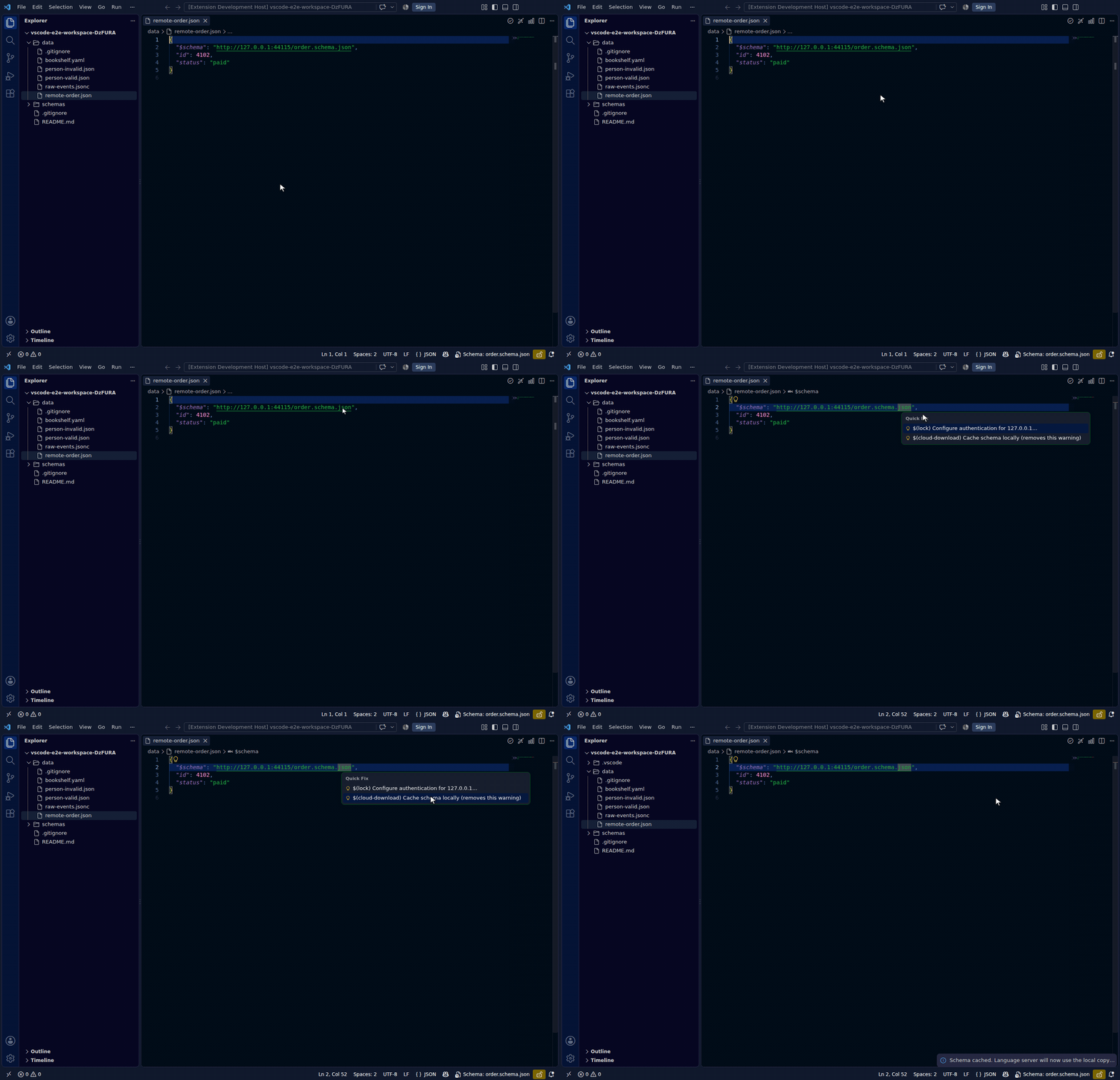
Downloads the remote schema (using stored credentials) and saves it as a local file. Rewrites the json.schemas / yaml.schemas entry to point at the local copy so VS Code's built-in JSON language server and the Red Hat YAML extension both see it — eliminating the red squiggle and restoring IntelliSense. Can also be revalidated automatically — see jsonschema.cache.autoRefresh in Configuration.
The command is hidden from the Command Palette on purpose — it needs a remote URL to act on, so it is offered where one exists: put the cursor on a remote $schema line and it appears in the quick fixes (Ctrl+.), alongside Configure authentication.
| Toolbar | Command Palette |
|---|---|
| — | ✅ (hidden from palette by default) |
JSON Schema: Refresh Schema Cache
ID: jsonschema.refreshSchemaCache
Re-downloads a previously cached schema from its original remote URL. Use this when the remote schema has changed and you want the local cache to reflect the latest version.
| Toolbar | Command Palette |
|---|---|
| — | ✅ |
JSON Schema: Run Schema Tests
ID: jsonschema.runSchemaTests
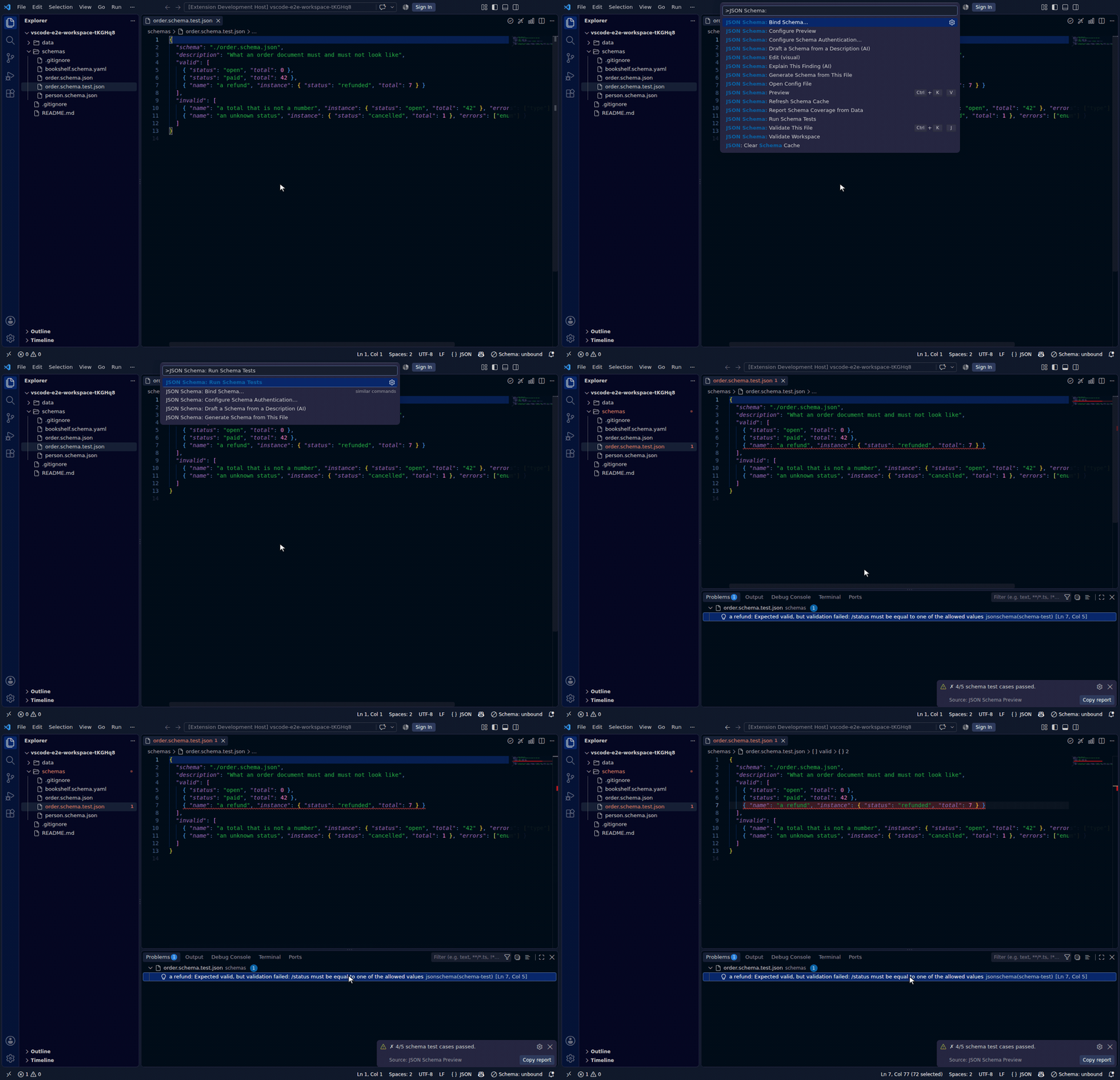
Runs the declarative test suites that pin what a schema must accept and must reject. On a *.schema.test.json file it runs that suite; on a schema file it runs every suite in the workspace whose schema resolves to it, and reports the aggregate.
Failing cases appear as errors on the failing case in the suite file, and each run replaces the previous run's diagnostics. The summary offers Copy report.
The suite format, the errors keyword-matching rule, and the CI story are in The schema lifecycle.
| Toolbar | Command Palette |
|---|---|
| — (JSON Schema submenu) | ✅ |
JSON Schema: Extract to $defs… / Inline this $ref / Remove Unused Definitions
IDs: jsonschema.refactor.extractDefinition, jsonschema.refactor.inlineRef, jsonschema.refactor.removeUnusedDefinitions
Schema-aware structural edits, offered as Refactor code actions where they apply. Renaming a definition uses the editor's own F2 gesture and rewrites every reference; Shift+F12 finds them all.
Each operation refuses rather than guessing when it cannot preserve meaning — see Restructuring for the rules and what "unused" means transitively. JSON/JSONC only.
| Toolbar | Command Palette | Code action |
|---|---|---|
| — (JSON Schema submenu) | ✅ | ✅ |
AI commands
IDs: jsonschema.ai.describeProperties, jsonschema.ai.draftSchema, jsonschema.ai.enrichSchema, jsonschema.ai.explainDiagnostic, jsonschema.ai.generateRealisticData, jsonschema.ai.migrationNotes
Optional, opt-in drafting help through VS Code's own Language Model API — off by default, verified against this project's engines before anything is offered, and never applied without a preview.
See AI assistance for what each one does, the guarantees, and exactly what is sent.
| Toolbar | Command Palette |
|---|---|
| — (JSON Schema submenu) | ✅ |
What inference adds beyond structure
Structural inference says type: string for an e-mail address. A deterministic enrichment pass then adds what only the values reveal:
- a
format(email,uri,date-time,date,uuid,ipv4) when every observed value at a path matches it — one mismatch means no format, because a wrong format turns valid data invalid; - an
enumwhen a path repeats a small closed set across enough records (at least 4 observations, at most 5 distinct values, repeating at least half the time). A single document never yields an enum — that would freeze first-seen data into a contract.
The pass is additive and pure: nothing the structural pass produced is removed, renamed or retyped. Pass --plain to the CLI's infer to skip it. The optional model-assisted Enrich Inferred Schema (AI) builds on this deterministic pass rather than replacing it.